
SOLVED: Early inactivity timeout / missing kernel in Microsoft Fabric

I recently had an unusual experience with Microsoft Fabric: a notebook in an otherwise healthy workspace couldn’t start (saying it couldn’t find the kernel) or, when it did, timed out due to inactivity mid-run. If you’re reading this post, I assume you’ve encountered something similar. Don’t stress! You might be having the same problem I did. This blog will walk you through the issue, what’s happening behind the scenes to cause it, and how I managed to get it working again.
The Problem
Maybe this sounds familiar: A notebook I had previously been running in Microsoft Fabric halted partway through, claiming the session had timed out due to inactivity. The notebook appeared to be quite active at the time, so this initially puzzled me.
When I tried to reconnect to the session, I got an error claiming that my kernel was not found. This error was even more baffling, especially because my other notebooks in the same workspace connected to the backend Spark cluster just fine. Why, I wondered, was this one having trouble locating the kernel?
A quick internet search revealed several community posts that were somewhat relevant. Still, none had found a solution other than contacting Microsoft support and having Microsoft fix the notebook on the backend.
I didn’t fancy the delays raising a case would incur, but fortunately, after giving the matter some thought, I realized that the errors had a reasonable explanation. Yes, it was a problem on the backend, but one I might be able to resolve on my own.
The Cause
Microsoft Fabric is built on Azure resources. Fabric Python notebooks use two separate compute environments: a standalone Python runtime container and, when invoking Spark, a Spark driver/executor cluster. When you connect to those compute resources, both the Python container and the Spark driver container persist for the notebook session’s duration. However, their lifecycles are independent: They can start and fail independently. When the session ends, Fabric terminates the driver container and returns the underlying Spark compute to the pool. Typically, it also terminates the Python container, but crucially, that container isn’t dependent on the health or life cycle of the Spark resources.
There is some variation in this if your workspace connects to a managed virtual network, but the underlying process remains largely the same for our purposes. The main difference is that your Spark compute does not come from or return to a publicly shared pool.
What these symptoms indicate, then, is that, for some reason, your Spark driver container is invalid. However, your session information is cached on the backend and is directing your notebook to the non-existent driver container. This situation may stem from a failed cleanup, a failed start, or some error that happened on the backend during your session.
When you open your notebook, Fabric recognizes the session information and binds the notebook to that session. When you run the notebook, it starts normally and performs actions that use the Python container’s available compute resources. At some point, whenever it reaches code that invokes Spark functionality, it attempts to connect to the Spark driver container. Not finding it, Fabric announces that your session has timed out due to inactivity (a misleading error). However, it does not clean up the stale data in Fabric’s control plane or shut down the Python container.
For whatever reason, a session in this state does not clean up automatically. Waiting five minutes for the session to time out will not help, and the data is retained in Fabric’s control plane, not in your browser, so you cannot fix this by running in incognito mode or clearing browsing data.
My Solution
To fix this problem, all you have to do is take action that forces Fabric to clean up the session. This error is difficult to reproduce, so I could not test multiple options. The steps I followed are below. Some of these may be optional.
1. Close the notebook on the left-hand pane.

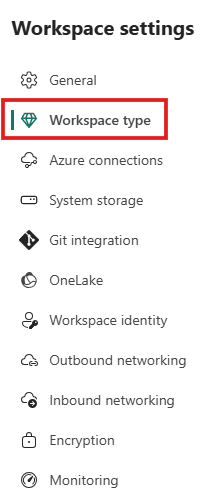
2. Go to your Fabric settings and temporarily change the workspace to a different capacity (most likely optional, but I can’t confirm).
3. Open your notebook. It will reconnect to the same session.

4. Click the red square to stop your current session.

5. Close the notebook on the left-hand pane again.
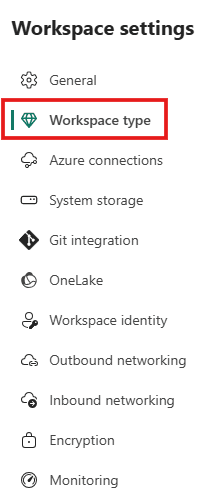
6. Change back to the original capacity.
7. Open your notebook again. Note that it does not connect automatically to the bad session.

Your notebook should now run normally.