
Recovering an Editable Power Automate Desktop Flow from a Managed Solution

It has happened to everyone in IT: You upgrade your software to the latest version, only to find out that the update breaks a feature you rely on. This happened to us recently with Power Automate Desktop. We took the in-app upgrade, and some Dataverse actions became inoperable, a problem that was not unique to us. Thankfully, in our case, a slightly older version was available via the Microsoft Store, which didn’t have the bug. Unfortunately, we’d already saved one of our flows in the dev environment with the new version before realizing there was a problem.
As those experienced with Power Automate Desktop will already know, the software typically refuses to open any file saved in a newer version than the one currently running. That was the case here, meaning the development copy of this flow was unusable. The managed production copy still ran, but we could no longer edit it, not without upgrading to a PAD version that would break all our flows.
Fortunately, it turned out that an editable copy could be extracted from the managed version without having to rebuild the flow from scratch. This blog post walks through how we managed it. If you need to do the same for any reason, this fix works.
Understanding the problem:
Components in managed solutions cannot be edited or exported. If all you have is a working managed copy of the flow, you can continue to run it, but you cannot make any further changes. For that, you would need an unmanaged copy.
If you add your existing managed PAD flow to an unmanaged solution, this will not convert it to an unmanaged flow. If you try to import to an environment that does not have the original solution, the import will fail due to missing required components (And doing “add required objects” with the managed flow before exporting does nothing).
If you import into an environment that already has the solution, the import will succeed, but because Power Automate recognizes them as having the same ID, it will not overwrite the unmanaged copy with the managed one (or an unmanaged version of it). Instead, you’ll end up with a new solution that has simply had the existing flow added to it, complete with whatever problem you were trying to undo.
The Fix:
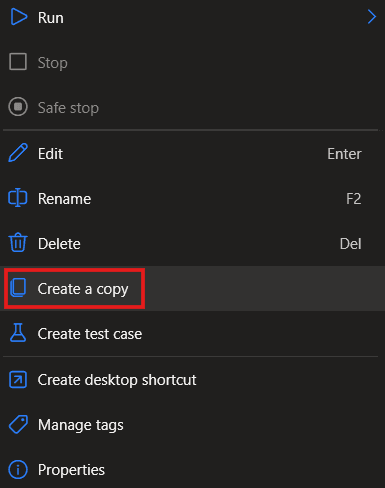
The key discovery was that while the managed flow cannot be edited or exported, the Create a copy feature in Power Automate Desktop creates a version that can be. Here’s the step-by-step:
Step one: Open the Power Automate Desktop app in your production or testing environment, wherever the managed solution you want to extract the flow from resides.
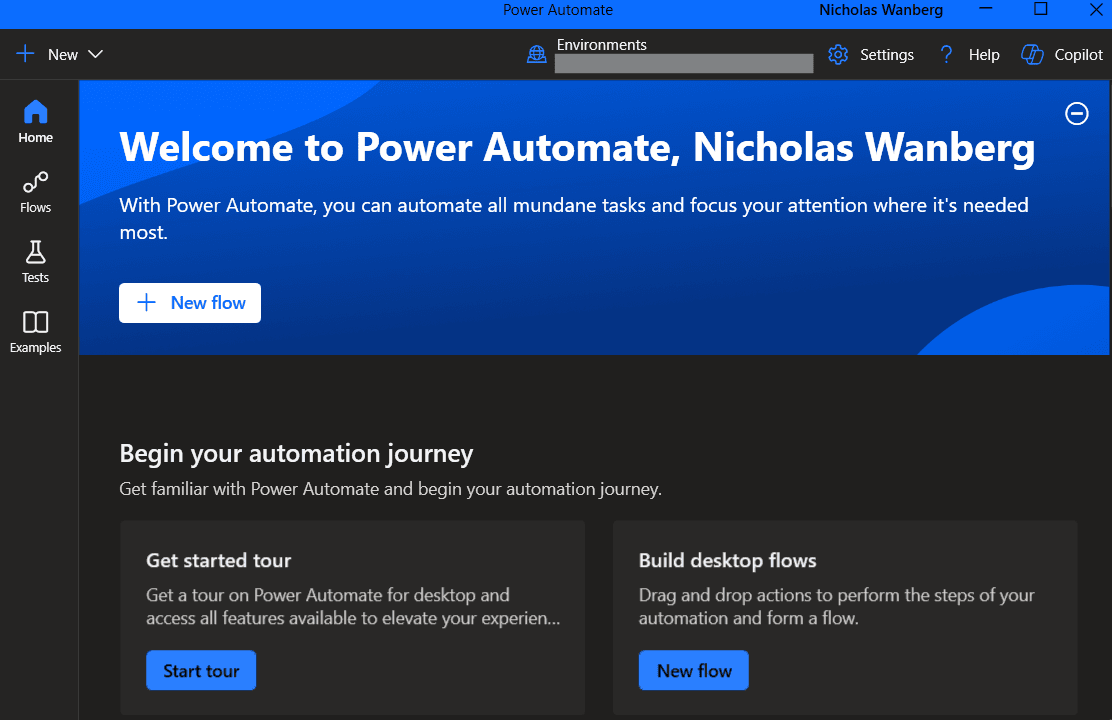
Step two: Locate the flow within the desktop app and click the context menu.

Step three: Select “Create a copy” from the menu. The resulting copy will have the same content but be unmanaged by default.
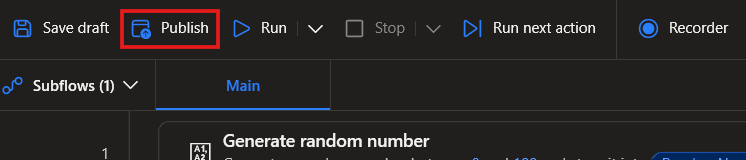
Step four: Open it in the editor and publish it.
Step five: Migrate the copy back to your development environment. This requires adding the copy to a new solution, exporting it as unmanaged, and importing it into the development environment. This will create a separate copy of the original flow in that environment.
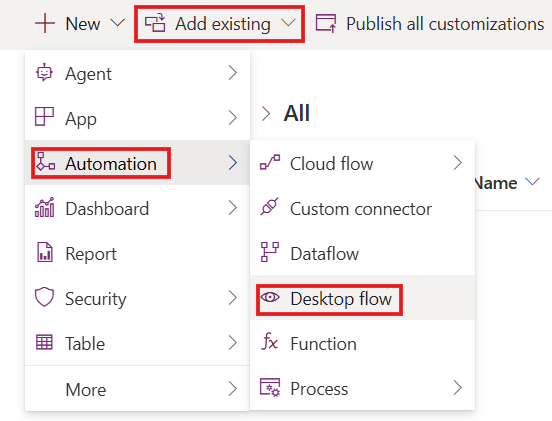
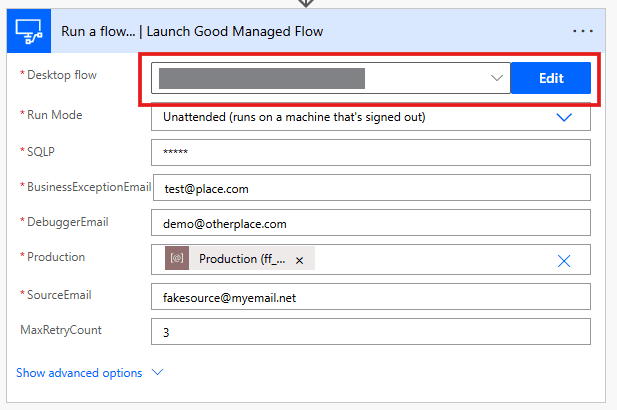
Step six: Replace the bad, unmanaged copy with the new one. Remember that the ID, not the name, is what Power Automate uses to identify the object. As such, you may need to add the new copy to the old solution, remove the bad copy from the solution, and change any references (usually just the cloud flow that launches it) to point to the new flow.
Avoiding the problem:
Needing this method usually means that an unmanaged flow was either lost or irrevocably altered in a way that requires a full recovery of an older version. To avoid going to these lengths in the future, consider implementing regular backups or version control in your unmanaged solutions. That way, if something happens to your flows or other solution components, you have something to fall back on. This makes for an easier recovery process than described above.
Also, it never hurts to test Power Automate Desktop upgrades before saving business-critical workflows.
In conclusion:
Regular backups and version control are better ways to keep track of the latest working versions of your Power Platform components. However, if you don’t have those, managed copies of your desktop flows can still serve as a recovery source when the original unmanaged version is lost or rendered unusable. This bypasses the need to rebuild PAD flows from scratch or copy them, subflow by subflow, into a new process. Producing an unmanaged copy can save time and reduce the likelihood of human error.