
Renaming Broke the Lakehouse. Now What?

A longstanding issue has plagued Microsoft Fabric: renaming a lakehouse can sometimes put it into a corrupted state. I’ve encountered this error twice in the past month across different tenants, but others have been struggling for years.
As far as I can tell from the symptoms, the issue may be related to a problematic entry in the OneLake catalog. For many purposes, the lakehouse will continue operating normally, but some tools will no longer be able to find it. Certain pipelines, notebooks, dataflows, and semantic model refreshes will fail but not all.
To date, I’ve found only one really comprehensive do-it-yourself solution: replace the lakehouse. However, that isn’t always an option. In the post below, we’ll walk through some tips for safely recreating and deleting the lakehouse, followed by some workarounds for dealing with the symptoms if recreating isn’t possible.
“Rebuilding safely” or “What time is it when an elephant sits on your lakehouse?”
(Time to build a new lakehouse.)
Recreating and deleting a lakehouse is the only complete recovery path yet known. Still, if you don’t do it carefully, you risk breaking existing processes and losing valuable data. Here are some tips to avoid the bigger pitfalls:
Build First, Delete Last
This may be obvious, but don’t delete your old lakehouse until you’re sure everything is working with the new one. Also, when you do delete it, consider leaving it in the recycle bin, just in case you realize you missed something. By default, you’ll have three days to recover it from there, but that window is configurable (up to 90 days).
As long as your old lakehouse is intact, you can still recover any data, view definitions, or other logic that it contains. Any connections that didn’t break from the rename will also keep working. Ensure everything transitions cleanly to the new lakehouse before you clean up the old one.
Use Item Lineage and Advanced Editors to Make Transitioning Easier
A good starting point for switching connections to the new lakehouse is to use the lineage view.
From the workspace, select the ellipsis menu next to your lakehouse name in the artifact list at the bottom of the screen. In that menu, select View item lineage.
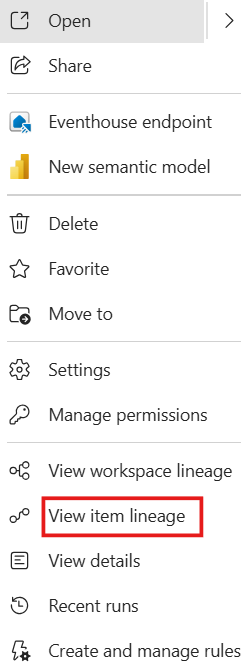
This will open up the lineage view, which shows all the Fabric artifacts that currently reference this lakehouse. Update each of these (except the SQL analytics endpoint) to point to the new lakehouse.
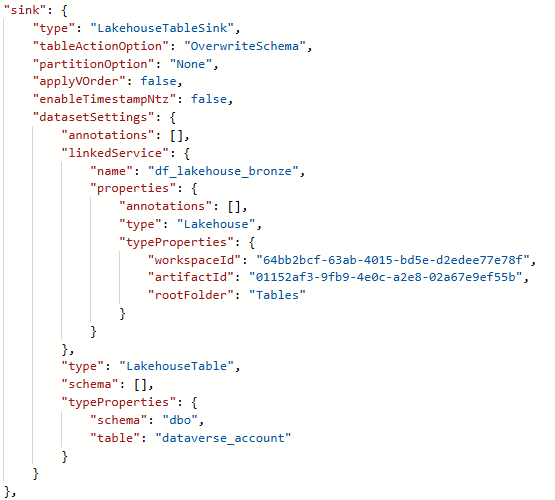
To make adjustments easier, consider using the advanced editors. For example, in copy jobs and pipelines, you can find and replace the old lakehouse artifact ID with the new one when editing in JSON view. You don’t need to change surrounding references to the lakehouse name or similar; they’ll update automatically after you save with the new ID.
In dataflows, you can adjust the queries directly to swap the lakehouse name or ID as needed. For source queries, these are visible by default. For destination queries, you may have to enable them under Options -> Global -> General -> Data destinations -> Enable advanced edit for data destination queries. Once you do, you can right-click the destination and select the advanced editor from the menu. Making the change here lets you alter the destination cleanly while leaving other configurations intact. You’ll get a warning pop-up the first time you enable advanced edit. You can safely click through that. In practice, using the advanced editor for destinations is not fundamentally different from directly editing source queries.
Don’t Forget Your Data!
If your new lakehouse will get fresh copies of all data on the next pipeline run, you may not need to copy data from the old one. However, beware: If some data is loaded incrementally, copying data from the old lakehouse may be easier than running a full refresh of the source data. Consider carefully what you need to save.
And remember: Not all data is in table format. Files, saved queries, shortcuts, and SQL views, among other things, might need to be transferred as well. The last thing any good data engineer wants is to find out they’ve lost their data.
Workarounds: Living with a Broken House
If, for any reason, replacing the lakehouse isn’t feasible, you can get some of your resources working again with the appropriate workarounds. I must stress that none of these will fix your issue overall, and you’ll need to rely on these fixes for every resource of that type in the future, but they should be enough to get some resources working again.
Here are your main options:
Change the Name Back
Returning the lakehouse to its original name (and ensure it’s an exact string match!) can fix the SQL analytics endpoint. Unfortunately, this doesn’t fix everything else. Putting the name back is insufficient to get your lakehouse back to full function, but it’s a start.
Use IDs rather than names
In some cases, you can re-enable a bad connection by referencing the lakehouse’s artifact ID or lakehouse ID (depending on the situation) instead of the name. When this happens, be aware that neither the new nor the old lakehouse name will resolve correctly.
Unfortunately, IDs vary between development, testing, and production workspaces, unlike lakehouse names, which remain consistent. In ALM scenarios, you’ll need more workarounds, such as saving the IDs in variables, to keep your connections working across your deployment pipeline.
Bypassing Name Resolution: “ABFSS” spells “Friend.”
In notebooks, if you need to reference a lakehouse name in Spark SQL, for example, and the lakehouse is the default data source for the notebook, you can get a valid string via:
spark.catalog.currentDatabase()
That will give you an internal catalog/database identifier for the lakehouse, but not the name-based one that usually appears. Instead, you’ll see a very long, seemingly arbitrary series of characters. SQL statements in that notebook can use that string as the lakehouse name. However, this won’t work if the lakehouse isn’t the default. As a more general-use solution, you can use the ABFS address of your tables or files. For example, you can find these in the lakehouse UI by selecting the ellipsis menu on any table, choosing Properties, and scrolling down.
Your ABFS path for tables will be in the format:
abfss://
This can be used to read from the table in a notebook with:
spark.read.format(“delta”).load(ABFSS_ADDRESS_HERE)
And similar will be available for files. But because it relies on the lakehouse ID, it will have the same ALM difficulties as other ID based approaches.
Note that it’s possible to format the ABFS path using the lakehouse name as well, but that’s not what you’ll see when checking the path in the UI, and I would not expect that to work in this situation anyhow.
Stop Using Dataflows
I wish I had a better option to offer here, but I’m afraid I don’t. I’ve tried a wide battery of reference types for the lakehouse dataflow gen 2 cases, and none of them work. If someone comes up with a way to do this, I’d be happy to hear it, but for now, if this happens to you, it appears your dataflows are unfixable. I recommend either replacing the lakehouse or replacing your dataflows with some other Fabric artifact.
And There’s Always Microsoft Support
Hopefully the above has helped you get perspective on the situation and your options. If none of those solutions are acceptable, then you’re at the end of what you can do on your own.
In that case, it’s time to open a ticket. You’ve done all you can, and this should fall within Microsoft Support’s scope.