
Errors after Deploying Copilot Studio Agents: Missing or Out-of-Date Components

Introduction
Many users encounter persistent issues with Copilot Studio agents in application lifecycle management (ALM). Users move the solution to or update it in a new environment, only to discover that some topics, tools, or MCP server/agent references are missing (or if they deleted and rebuilt them, still on older versions). This can be doubly frustrating when chasing a cryptic error message, because it may be unclear at first that the “updated” version of the agent doesn’t include all the latest updates.
Fortunately, the causes are known. This problem stems from a classic gotcha in Power Platform ALM, compounded by two special twists that affect current versions of Copilot Studio. Even more fortunately, there’s a fix. This blog explains how to do it.
The Root of the Problem
The error stems from how Copilot Studio agents become solution-aware. Normally, objects created within a solution are automatically part of that solution, as are any updates or new subcomponents added to them. You don’t need to keep manually adding components to your solution.
Unfortunately, it’s not presently possible to create new Copilot Studio agents inside a solution. Even if you use the normal method of choosing New -> Agent -> Agent from the menus inside the solution, the link will redirect you to the Copilot Studio UI.
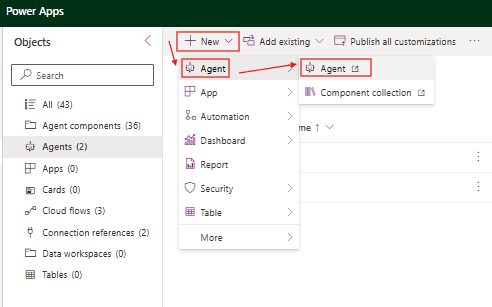
Any agent you create there will not be part of the solution you came from. You have to add the agent to the solution manually by returning to the solution, selecting Add Existing -> Agent -> Agent, and picking your newly created agent from the list.
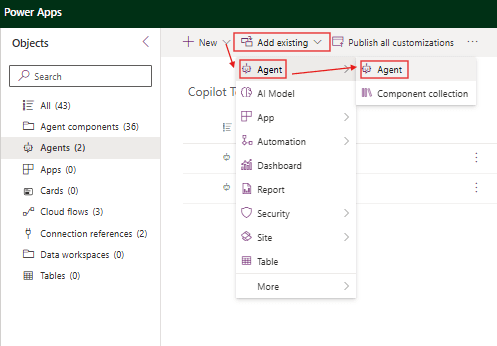
When you do this, the agent will bring any existing agent components with it into the solution. However, the catch is that any new agent components you add later will not be included automatically. That’s why the new topic, tool, or so on you added before migrating the agent to the test environment does not show up in the test environment, and any references to it produce an error.
That’s the first twist. The second twist is that any topics you add to the agent (and tools and so on count as topics from an agent component perspective) do not appear in the Add Existing menu or its submenus. You cannot browse existing agent components, locate the ones you need, and add them to your solution. If your usual method of fixing missing components is to add them from that menu, you’ll be stuck.
The Practical Solution
To add the components you want to your solution, the best way is to:
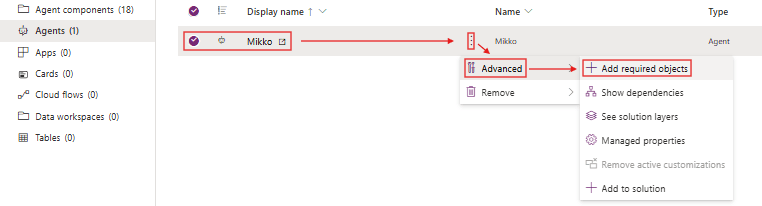
1. Open your solution and find the agent.
2. Click the three dots next to its name.
3. Choose Advanced -> + Add required objects.
Doing so will automatically locate and add any components your agent uses to your solution.
Unfortunately, if you need to be selective about which components you bring in, you have no recourse but to remove the unwanted components from your solution after adding them all. For this, select the component and choose Remove -> Remove from this solution. There’s currently no way to add specific agent components while selectively excluding others, but fortunately, the need to do this is rare.
Also, there is currently no way to automatically incorporate new agent components into your solutions without this manual step. Hopefully, Microsoft will make the process more automated and intuitive in the future.
Conclusions
ALM is a crucial part of modern IT development, and Copilot Studio agents cannot be exempt from that process. However, incorporating Copilot Studio agents into Power Platform ALM has special considerations. If you follow the extra steps, Copilot Studio ALM can be as powerful and painless as any other ALM process. However, without adding the required components, your ALM will fail, and the agent that worked fine in your development environment may be completely non-functional in testing (or worse, production).
OMG this is the ultimate revelation.